
Since Ruby on Rails 3 was released, I have had problems with deployment configuration, such as asset precompilation. Of course, if you deploy an application to a powerful host, you won’t have any problems, and deployment to such a host will be standard and simple. But if you have a server with little RAM (less than 1 GB), you will have to wait a long time for assets to be precompiled. So here I will explain how to avoid precompiling assets on the server and decrease deployment time.
1. Free hosting
If you don’t already know about free Ruby hosting, I would recommend heroku. It’s a beautiful free hosting service that lets you deploy Rack/Ruby on Rails applications.
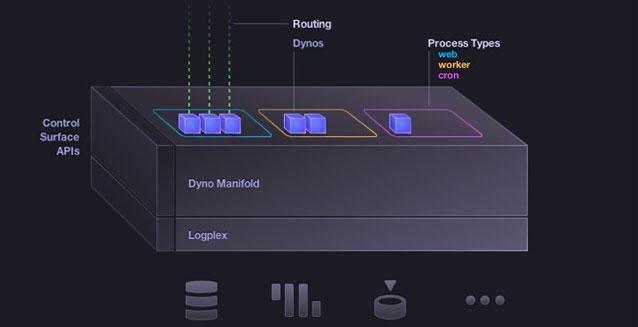
I won’t describe how it works here because you can find a lot of information about it on the official site.
I have been using a free account for months for the blog you are reading now, and I haven’t had any issues with server failures, long loading times or anything like that. Sometimes there were about 1000 visitors per hour, and everything worked. So I think a free account will be enough for your new services or staging/QA environments. If you don’t have enough memory, you can buy a web dyno for $36 per month. You can also install add-ons — a wonderful heroku feature that saves you time installing and configuring additional services required by your application, such as:
- Free email services
- Scheduling
- Databases
- Search engines
- and so on.
NOTE: there are restrictions for every add-on.
I hope you have already signed up and are ready for the next step.
2. Assets bucket
There are several ways to precompile assets and connect them to a Rails 3 application:
- You can precompile assets on your local machine and make a commit. But I think it is a bad idea because you will have large commits whenever any JS/CSS changes.
- Precompile assets during deployment on the server. This requires an instance with at least 1 GB of memory and write access to the assets directory.
- Add the assets directory to the ignore list for your VCS (Version Control System), precompile the assets and upload them to an assets bucket. An assets bucket is a server that lets you store static data and retrieve it through a public URL.
I prefer the 3rd option because heroku doesn’t allow you to save files on the instance. Also, 1 free web dyno has only 512 MB of memory. To save assets in the bucket, we should choose a server with an API for our needs. There are a lot of services on the internet: AWS S3, Dropbox, Rackspace Cloud Files and so on. It would be simple to use Dropbox for our problem: once you have precompiled assets, just copy them to the Dropbox public folder, tell your application where to look for assets, and that’s it! But I prefer to use S3 because I calculated that it will be cheaper for me in the future.
3. Amazon S3
- Go to AWS and sign up there. A credit card with a positive balance is required.
- Go to the AWS console, choose the S3 tab and create a bucket.
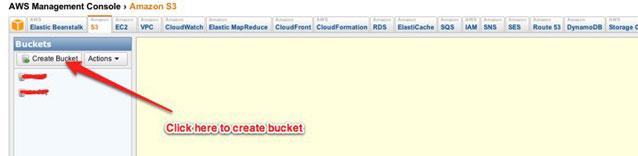
NOTE: There are several regions where you can store your bucket. Choose the nearest one to your future visitors for a better server response time.
- Go to CloudFront tab and create distribution for your bucket
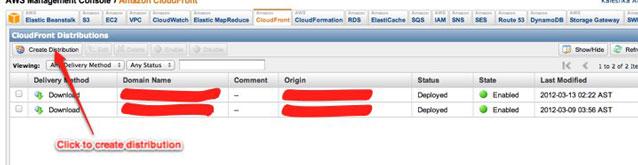
Please wait for the status to change to Deployed and the state to Enabled. It will take a few minutes (usually 5–10 minutes).
4. Deployment
To upload assets to the bucket, I use the jammit-s3 gem. It is simple to configure and use.
- Add this line to your Gemfile: gem ‘jammit-s3’, :group => :development
- Install the new gem by typing the command bundle in the terminal.
- Go to the AWS security credentials page, get your Access Key Id and Secret Access Key, and create the shell variables AWS_KEY and AWS_SECRET (steps 4–5).
- **export AWS_KEY=YOUR_ACEESS_KEY_ID **
- export AWS_SECRET=YOUR_SECRET_ACCESS_KEY
- Create the file config/assets.yml with this content:
s3_bucket: YOUR_BUCKET_HERE
s3_access_key_id: <%= ENV['AWS_KEY'] %>
s3_secret_access_key: <%= ENV['AWS_SECRET'] %>
s3_upload_files:
- public/assets/**/*- Edit your config/environments/production.rb file:
MyApplication::Application.configure do
  # Code is not reloaded between requests
  config.cache_classes = true
  # Full error reports are disabled and caching is turned on
  config.consider_all_requests_local       = false
  config.action_controller.perform_caching = true
  	# Disable Rails's static asset server (Apache or nginx will already do this)
  config.serve_static_assets = false
  # Compress JavaScripts and CSS
  config.assets.compress = true
  # Don't fallback to assets pipeline if a precompiled asset is missed
  config.assets.compile = false
  # Generate digests for assets URLs
  config.assets.digest = true
  # Specifies the header that your server uses for sending files
  # config.action_dispatch.x_sendfile_header = "X-Sendfile" # for apache
  config.action_dispatch.x_sendfile_header = 'X-Accel-Redirect' # for nginx
  # Enable serving of images, stylesheets, and JavaScripts from an asset server
  config.action_controller.asset_host = "http://YOUR_BUCKET_NAME.s3.amazonaws.com"
  # Enable locale fallbacks for I18n (makes lookups for any locale fall back to
  # the I18n.default_locale when a translation can not be found)
  config.i18n.fallbacks = true
  # Send deprecation notices to registered listeners
  config.active_support.deprecation = :notify
end
Pay attention to config.action_controller.asset_host: it should be your bucket URL!
-
Add public/assets to .gitignore:
/public/assets
In production mode, the manifest.yml file is required. It is generated in the /public/assets folder when assets are precompiled. I see a nice solution in changing the path for the manifest.yml file. Go to config/environments/production.rb and edit it like this:
# ...
# Defaults to Rails.root.join("public/assets")
config.assets.manifest = 'public/manifest'
# ...
We are ready to deploy the application. Let’s precompile the assets:
RAILS_ENV=production rake assets:precompile --traceUploading assets to S3 is very simple:
bundle exec jammit-s3Create a heroku application:
heroku create
Make a commit and push it to heroku:
git commit -am 'assets precompiled'
git push heroku master
The default DB for a heroku application is postgresql. If you would like to change it, install your preferred add-on.
Of course, you should run migrations if your application has any:
heroku run rake db:migrate
heroku run rake db:seed # if you have required seeds
I hope this post will be useful not only for me. Thanks for reading!